How to Find Older Versions of Files in Teams
Have you ever wanted to recover an old file?
Have you ever wanted a file restored?
To find older versions of files in Microsoft Teams, please follow the steps and see the screenshots below.
- 1. Click on Team on the left hand panel
- 2. Click the General inbox
- 3. Click files at the top
- 4. Next to the file you want the old version of, click the 3 dots to the right
- 5. Click open in SharePoint (see below)

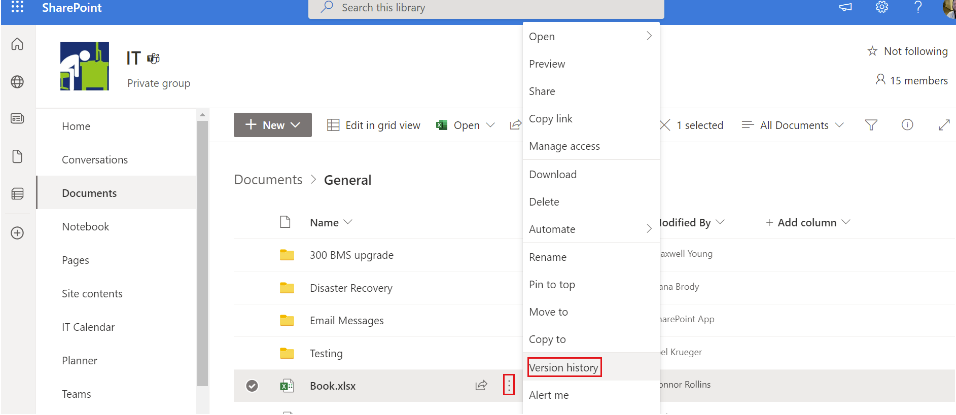
- 6. Once in SharePoint, click the 3 dots next to the file and click version history. (See below)
- 7. You should see all the old versions of that file on this screen. (See below)
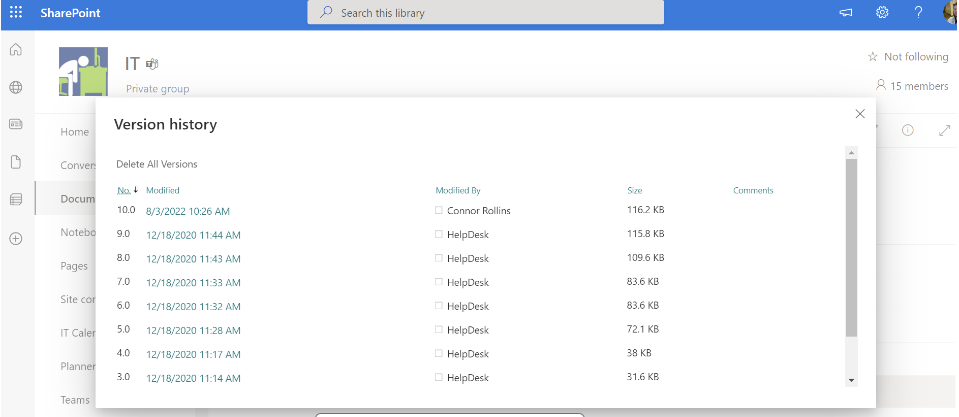
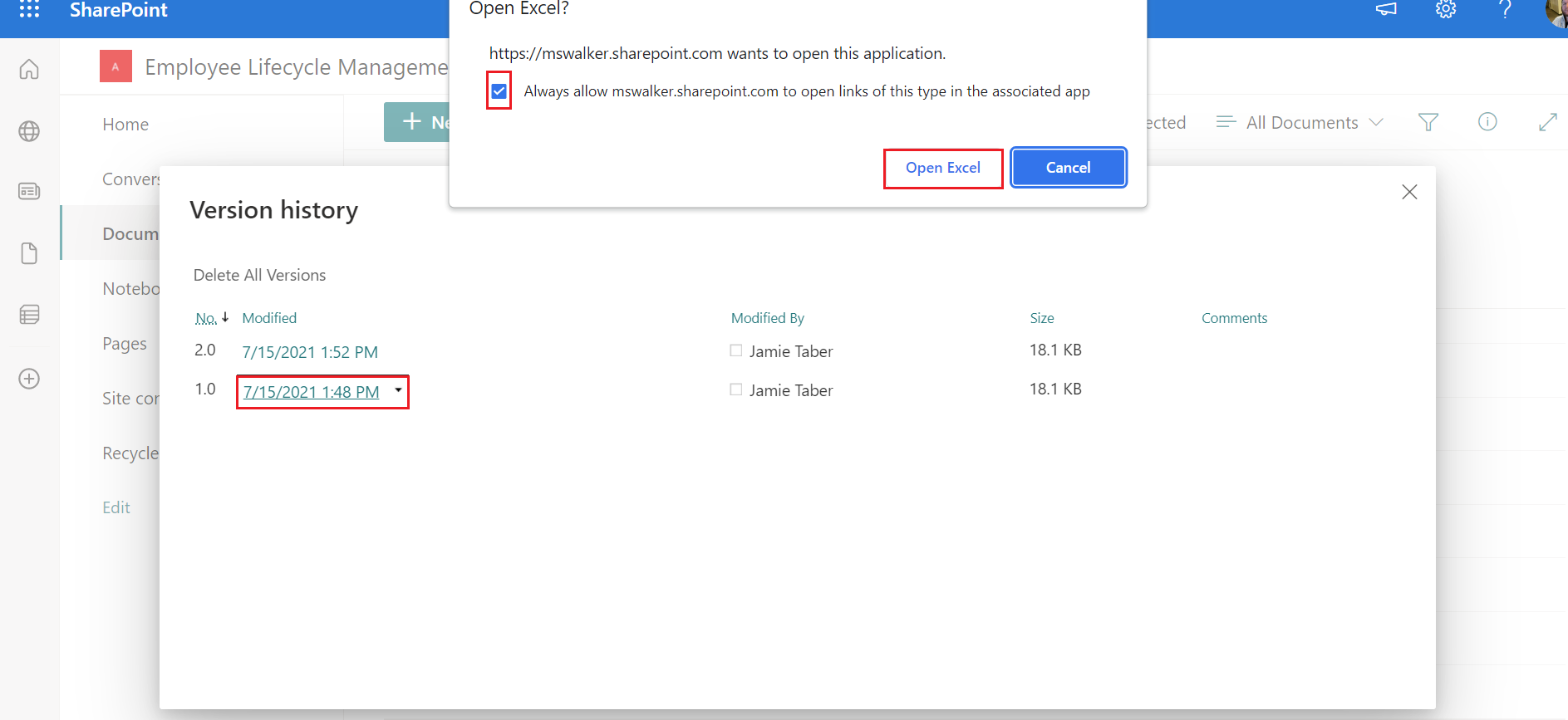
- 8. Click on the file you want to open on the left
- 9. Check the box that says "always allow mswalker.sharepoint.com to open"
- 10. Then click the box that says open.
Please reach out to the helpdesk if you have any questions.
0 Comments